
When printing or exporting to a PDF from Adobe InDesign I sometimes run across pages coming out blank. I don’t mean the odd blank page in the document or one or two blank pages at the end, but rather the whole document is blank, or each page is missing a large amount of information.
It happens so infrequently I usually implement some sort of manual fix like copying/pasting data to a new document. Ugggh.
Well just the other day a client asked for numbered tickets to be printed 10up on an Avery Page Template. The client had the perforated card stock at home and I was designing the tickets for him to print. No problem. Hit up Google for the InDesign template, open, paste in artwork, step-and-repeat and voila! Export to PDF… and, blank!
As it wasn’t the first time I’ve seen the issue I decided to spend a few minutes searching for a solution.
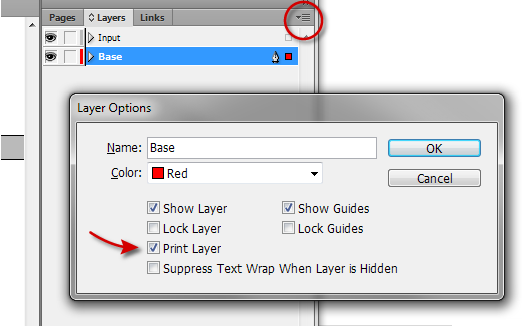
The template file I was using had set their Master Page layer to “non-printing”. See, this would never happen using your own files, but when using a source file not your own it’s hard to tell just what little switch they’ve flicked to make your life more pleasurable.
The fix: In the layers palette choose the top right Options icon (circled in red) and select “Layer Options for YOUR LAYER NAME HERE” and you’ll have access to the checkbox allowing those objects on that layer to print, or not. Ahhh. Now don’t you feel better knowing that.
This was the only place where I could find this, and it fixed my problem. A monument should be erected in your name. Thank you.
Hi and thanks for your tip!
I had the same issue. Several of my exported pdf documents looked all fine, until I tried to print them. Almost all of them came out as blank pages.
When I looked at the setting “Print layer” as you described above, it was active at my place. I wondered if there was a bug in InDesign (I am using CS6), so I turned it off and then back on again. I again exported the document to pdf and tried to print it out. It printed everything :-)
Thanks for giving me this idea of unchecking and checking this setting, even it looked all correct.
Really appreciate you sharing this blog post.Much thanks again. Fantastic.
It has been many months since you published this, but it is still really helping people. Muchas gracias, amigo!
Thank you so much for this! I was totally stumped when I faced the same situation!
My pleasure! I’m pleased this helped.
I mean.. THANK YOU! I thought I lost an entire day of designing!